Introduction To Shell Scripting!!📝🐧

🔷Introduction:
Here we are at blog number four in the "90 Days of DevOps" series. The foundations of Basic Linux Shell Scripting for DevOps Engineers will be covered in detail today.
A thorough knowledge of shell scripting is essential for DevOps engineers. Shell scripting enables you to automate monotonous operations, streamline workflows, and effectively manage your Linux system.
📝What is Shell Scripting, Anyway?
The ability to use shell scripts is similar to possessing a superpower. Shell scripting is a method of writing scripts that use a command-line shell, like Bash, to automate processes and carry out a list of instructions. It entails creating scripts📜, which are collections of commands that the shell, a command line interpreter will run. Shell scripting is one such method that utilizes the command line's ability to automate tedious operations and boost productivity allowing us to fully realize its potential💯.
Most Popular Use Case of Shell Scripting📜:
- 🌟 Automated Backup of a Directory 🌟
Consider a scenario in which you wish to periodically back up a crucial directory. It is possible to automate this procedure by writing a shell script rather than constantly transferring files and folders by hand. I have named the backup script "backup.sh" for now. Here's an illustration:
#!/bin/bash
source_dir="Enter the path of the source directory"
backup_dir="Enter the path of the backup directory"

timestamp=$(date +"%Y%m%d)

tar -cfz "$backup_dir/backupof_$timestamp.tar.gz" "$source_dir"

echo "Backup was successful!!"
👨💻Hands-on of the above example:
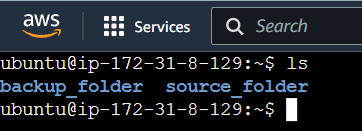
Initially, I created two folders named source_folder and backup_folder.
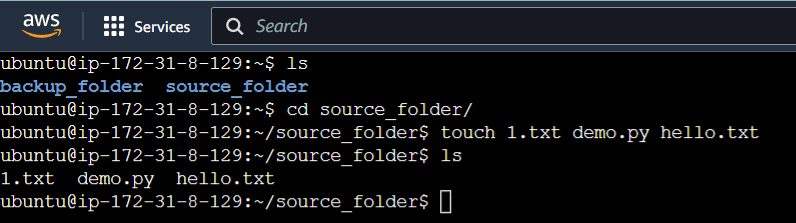
Then I navigated to the source_folder and inserted 3 files in it named 1.txt, demo.py, and hello.txt.
Then I created a Shell script using the command "vim backup_script.sh". I added the following content within the script.
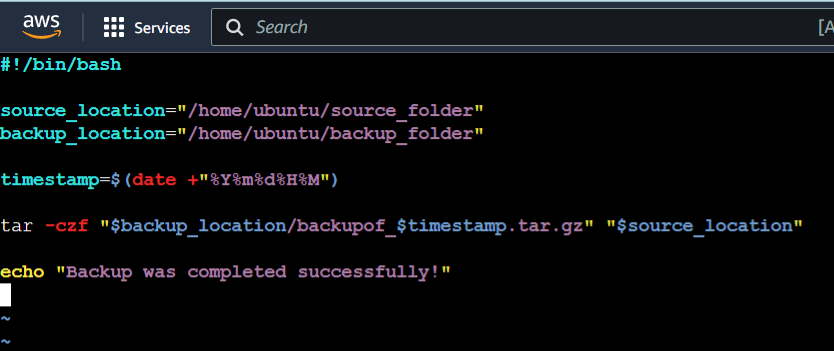
Here, I initially declared the location of the source and backup folder using two variables source_location and backup_location. Then, I used the timestamp variable to store the date of the backup in the specified format. Then I used the tar command to create a tar file of the backup generated. The tar file would be saved in the format of backupof + timestamp + .tar.gz. Lastly, I used the echo command to print if the script was successful.
Before executing the file I made the file executable by running the following command in the terminal "chmod +x backup_script.sh".
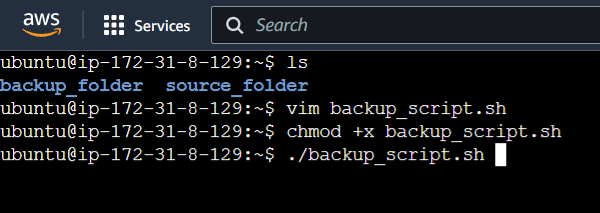
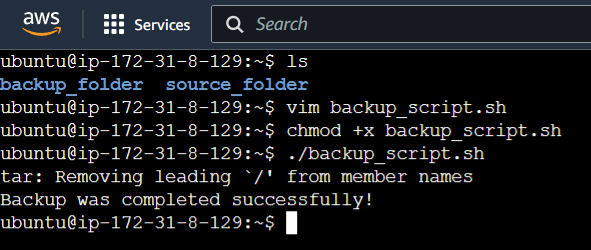
Once the script executed successfully I received the following output... to verify that the backup was generated I navigated to backup_folder.
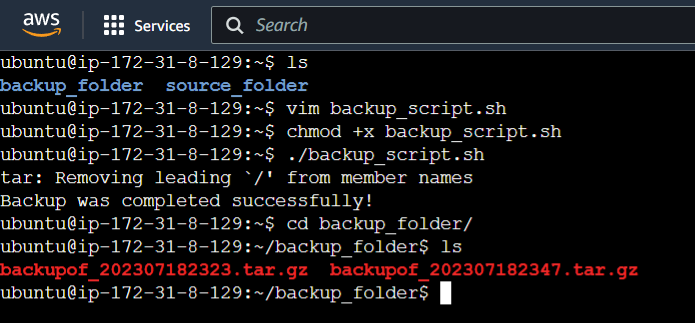
The above screenshot proves that the shell script ran successfully and a backup was generated.
Tasks for Day 4
Now we will perform some tasks to deeply understand Shell Scripting.
Task 1: Explain in your own words and examples, what is Shell Scripting for DevOps.
Shell scripting for DevOps refers to the technique of utilizing shell scripts📜 to automate operations🔁 and streamline the deployment, setup, and administration of software applications and infrastructure in a DevOps context. In order to deliver applications and services more quickly, the DevOps methodology stresses collaboration, communication, and integration between IT operations teams and software development teams.
Shell scripting for DevOps is like having a powerful 🛠️ toolkit that allows you to automate and orchestrate various tasks and processes in the world of DevOps. It involves writing scripts using shell languages like Bash, which provide a convenient way to interact with the operating system.
Example: CI/CD pipelines🏗 heavily rely on shell scripting. You can write scripts that autonomously build an application, perform tests, deploy it to production environments, and fetch code from a version control system. This guarantees a quick and easy approach to delivering software.
Task 2: What is #!/bin/bash can we write #!/bin/sh as well?
📝 A shebang, often known as a hashbang, is the line #!/bin/bash. In operating systems that resemble Unix, it appears at the start of a script file to specify the interpreter that should be used to run the script. The /bin/bash portion refers to the location of the Bash interpreter, a well-liked Unix shell. Providing a wide range of functions and functionalities, Bash stands for "Bourne Again SHell".
Whereas, The '/bin/sh' path refers to the Bourne shell, the original Unix shell from which Bash was derived. However, /bin/sh is frequently a symbolic link or a similar shell like Bash or Dash on many contemporary Unix-like platforms.
Therefore, if you want your script to be understood by any compatible shell, such as Bash or Dash, using #!/bin/sh as the shebang is usually safe. It offers greater portability between various Unix-like platforms. But bear in mind that using #!/bin/bash as the shebang will guarantee that Bash is used to execute your script if you specifically need features and functionalities that are exclusive to that shell.
Task 3: Write a Shell Script which prints 'I will complete the #90DayofDevops challenge'.
$ vim Devops.sh
#!/bin/bash
echo "I will complete the #90DayofDevops Challenge"
$ vim Devops.sh
$ chmod +x Devops.sh
$ ./Devops.sh
I will complete the #90DaysofDevops Challenge
Practical👨💻:
Create a file with .sh extension such as Devops.sh in the following example. Make the file executable by running the following command "chmod +x Devops.sh" in the terminal. Finally, run the script using "./Devops.sh". Once the script runs successfully, it will print the following output.
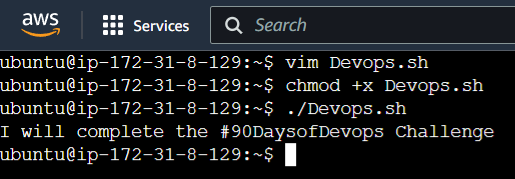
Task 4: Write a Shell Script to take user input, input from arguments and print the variables.
In this task, I will take user input and input from arguments and then print them.
#!/bin/bash

# Taking user input
echo "Enter your name:"
read name

# Taking input from arguments
age=$1

# Print the variables
echo "Name is: $name"
echo "Age is: $age"
Save the above script in a file with a .sh extension, such as 'Dev.sh' Make the file executable by running the following command in the terminal:
chmod +x Dev.sh
To execute the script, you can provide the age as an argument:
./Dev.sh 23
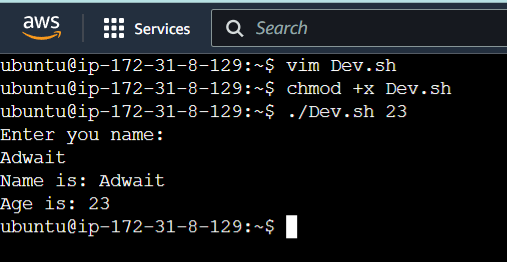
The script will prompt us to enter our name. After providing it, it will print the entered name and the age provided as an argument.
If you run the script without providing an argument, like ./Dev.sh, it will still prompt you to enter your name, and the age variable will be empty.
Practical👨💻:
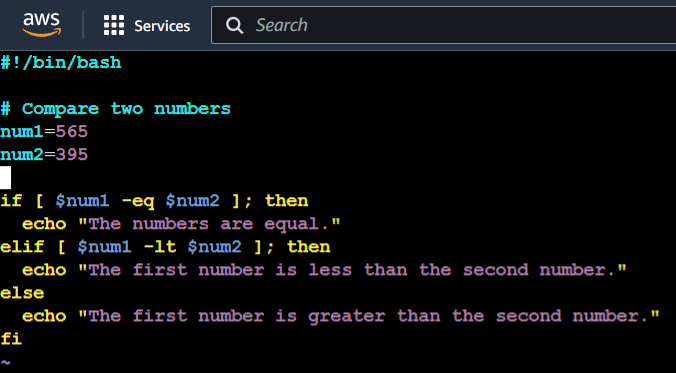
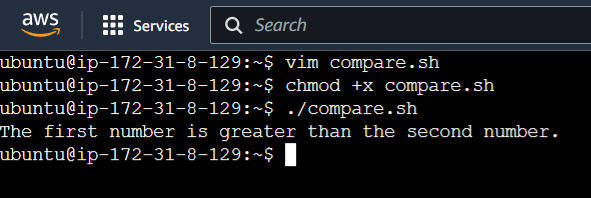
Task 5: Write an Example of If else in Shell Scripting by comparing 2 numbers.
#!/bin/bash

# Compare two numbers
num1=565
num2=395

if [ $num1 -eq $num2 ]; then
  echo "The numbers are equal."
elif [ $num1 -lt $num2 ]; then
  echo "The first number is less than the second number."
else
  echo "The first number is greater than the second number."
fi
Practical👨💻:
Initially, I created a script 'compare.sh' and inserted the following content to compare two numbers.
Practical👨💻:
📝🔎Conclusion:
Core Linux DevOps engineers should be proficient in shell scripting. They are able to boost the productivity of their daily workflows by automating jobs and streamlining processes. DevOps developers are able to automate deployments, setups, and many other tasks by building scripts utilizing shell commands. Shell scripting gives DevOps experts the ability to execute activities consistently and reliably while also saving time and lowering human labor requirements. With the information from this blog, you are prepared to start using shell scripting to improve your DevOps skills.


